Pi-Fi
A full Desktop Environment that lives entirely inside your terminal.
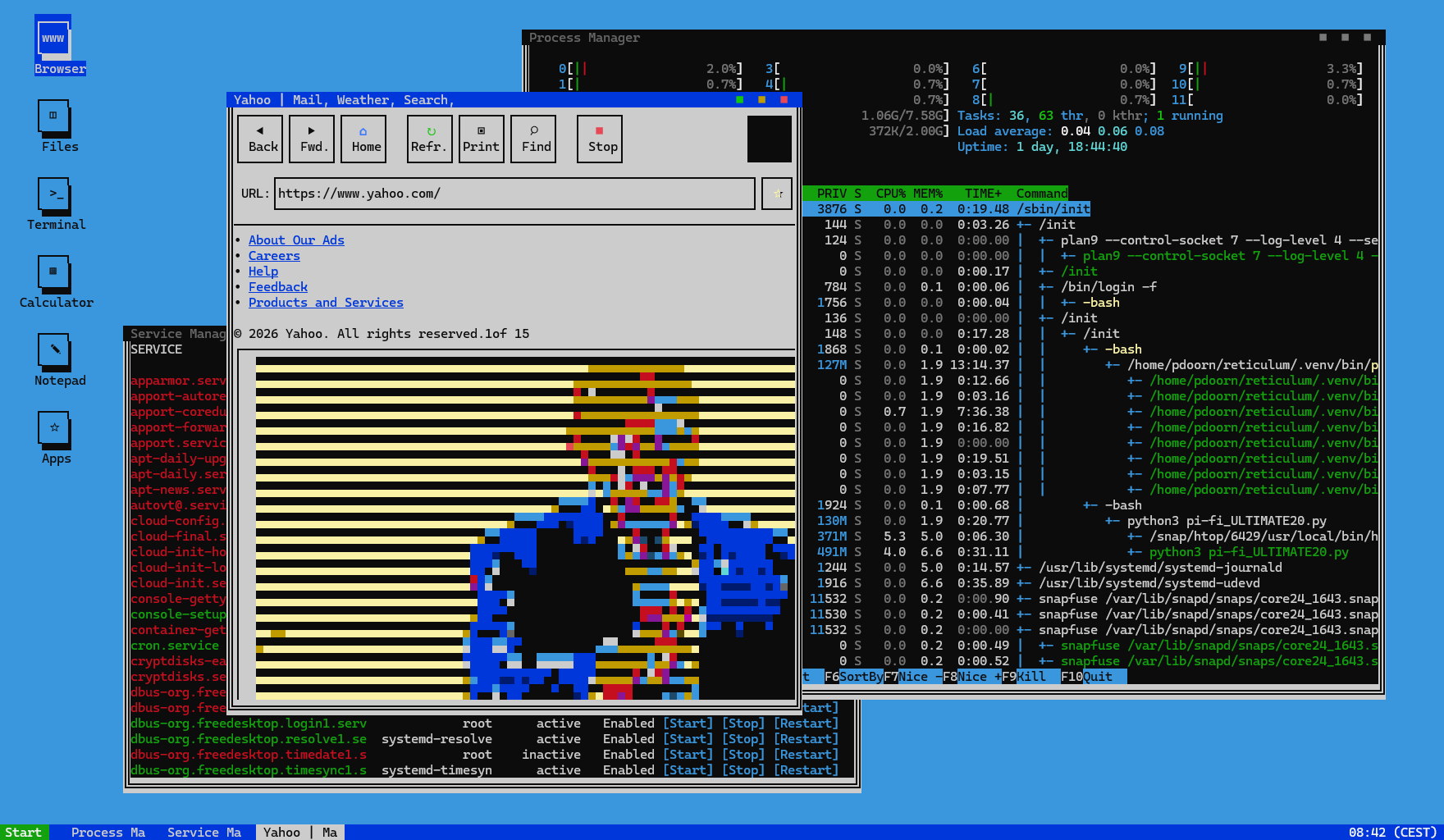
What is Pi-Fi?
Pi-Fi is a TUI (Text User Interface) Desktop Environment. No X server, no browser engine, no GPU required — just your terminal, turned into a full desktop with a taskbar, a start menu, draggable and resizeable windows, a process manager, a service manager, and a growing collection of apps. Everything you see in the screenshot above — the browser, the file manager, the calculator, the notepad — runs as text and ANSI graphics, right inside your Terminal.
It's fast, it's light on resources, and it works over SSH just as well as it does locally. If you've ever wanted the nostalgia of a BBS-era interface with the power of a modern desktop, this is it.
Build your own Apps
Pi-Fi isn't a closed system. If you know a bit of Python and are willing to learn the basics of the ncurses library, you can write your own apps and add them straight into the desktop, right alongside Browser, Files, Terminal, Calculator, Notepad and Apps. Want a music player, a chat client, a game, or a system dashboard? Build it, drop it in, and it shows up in the Apps folder like any other app.
It's Free
Pi-Fi is completely free to download and use and is licensed under the MIT License. See the LICENSE file for details. If you're happy using it, feel free to donate via PayPal: pdoorn(at)solidblue(dot)com.
Download the latest stable version here.
(extract it with: tar -xzf pifi.X.X.XX.tar.gz)
Inside the archive you'll find two files:
- pifi.py — the Pi-Fi program itself
- pifi.config — its configuration file
Just place both files in the same directory. That's it — no installer, no system-wide changes.
Prerequisites
Pi-Fi works out-of-the-box, but for Pi-Fi to be fully functional, a few tools need to be installed on your system as well:
- htop — powers the Process Manager app
- pillow — handles image loading and processing
- quickjs — runs JavaScript-based app extensions
- cairosvg — renders SVG graphics to the terminal
- ffplay — plays audio and video from within apps
- rns lxmf — needed for usig Reticulum
- qrcode — also needed for using Reticulum
pip install rns lxmf --break-system-packages
pip install qrcode
On Debian/Ubuntu-based systems, usually these can be installed with:
sudo apt update
sudo apt install htop ffmpeg python3-pil python3-cairosvg
pip install quickjs
(ffplay is included with the ffmpeg package, and pillow is the Python package that provides the PIL module.)
How to Download and Install New Apps
Open the Apps folder on the Desktop. In it you will find a list of the pre-loaded Apps which cannot be removed. But on the top there's a button 'Download Apps' which opens the App Repository, one click and it's installed. There aren't many Apps in it currently, but that's where we need your help: Just create your own Apps!
How to Create Your Own App
Every App is added the same way: entirely through pifi.config. Nothing about adding an App ever requires editing pifi.py itself. An App added this way isn't some restricted plugin — it's a fully real App with exactly the same access to the running desktop as anything shipped with Pi-Fi. It shows up in the App Store under "(3rd party Apps)", and it even gets a free [Uninstall] button there.
1. Create the App's title
Under the App list in pifi.config, add a line with a free number:
App004 : [My New App]The bracketed text becomes both the App's window title and its entry in the App Store.
2. Write the App's code between a start and end marker
# App004 ###############################################

<your Python code here>

# END OF App004 ########################################
Everything between those two exact marker lines is compiled and run once at startup, after the Desktop already fully exists. Both markers are required and the number must match on both.
3. Leave the rest of the file alone
pifi.config is hand-maintained with a fixed overall shape. When editing it, only change values: bookmarks, the home page, the AppNNN : [Title] lines, and the code inside your own App's markers. Every banner and section header stays exactly as it is.
4. What's available inside your App's code
Your code runs with every normal Pi-Fi module-level name already in scope — curses, os, safe_addstr, WINDOW_TITLES, WINDOW_SCALE, Desktop, and so on, exactly as if you were writing inside pifi.py itself. You also get two variables generated just for you:
- APP_KIND — a unique internal kind string, e.g. "tp_app004". Always use this instead of inventing your own.
- APP_TITLE — the title you wrote in step 1. Use this instead of hard-coding the name.
You also get the current value of every dispatcher method the Desktop uses to run each App: spawn_window, draw_window_content, dispatch_content_click, handle_key, handle_mouse, scroll_window, open_context_menu, do_action, close_window.
The "wrap, don't edit" pattern
Since your code can't reach into the hardcoded if/elif chain each dispatcher already has, it instead wraps the one(s) it needs: save a reference to the current function, then define a new function with the same name that handles your App's kind and calls the saved original for every other kind.
_myapp_orig_draw_window_content = draw_window_content
def draw_window_content(self, win, cx, cy, cw, ch):
    if win.kind == APP_KIND:
        safe_addstr(self.scr, cy, cx, "Hello!", curses.color_pair(PAIR_WINDOW))
        return
    return _myapp_orig_draw_window_content(self, win, cx, cy, cw, ch)
After your code runs, Pi-Fi copies any dispatcher name you rebound this way back onto the live Desktop class, completing the patch. Only wrap the dispatchers you actually need — most Apps need draw_window_content and dispatch_content_click; add handle_key and/or scroll_window only if your App reads keyboard input or scrolls. Give every helper you define a unique prefix (e.g. _myapp_...) so it can never collide with another App's code, and preserve each dispatcher's exact method signature.
5. A complete minimal example
WINDOW_TITLES[APP_KIND] = APP_TITLE
WINDOW_SCALE[APP_KIND] = (0.3, 0.3, 30, 8, 50, 15)

_myapp_orig_spawn_window = spawn_window
def spawn_window(self, kind):
    win = _myapp_orig_spawn_window(self, kind)
    if kind == APP_KIND and not win.state:
        win.state = {"counter": 0}
    return win

_myapp_orig_draw_window_content = draw_window_content
def draw_window_content(self, win, cx, cy, cw, ch):
    if win.kind == APP_KIND:
        safe_addstr(self.scr, cy, cx, "Hello from a 3rd-party App!",
                    curses.color_pair(PAIR_WINDOW))
        return
    return _myapp_orig_draw_window_content(self, win, cx, cy, cw, ch)
6. Useful helpers
- self._subwindow_attr(warn=False) — the correct color/attribute for a sub-window/dialog border, automatically adjusted for Day/Night Mode (warn=True gives the red warning-dialog variant).
- self._wrap(text, width) — wraps a string to a given width, for putting a message inside a bordered dialog.
- Double-line borders (╔ ═ ╗ ║ ╚ ╝) are the house style for sub-window dialogs; single-line (┌ ─ ┐ │ └ ┘) for toolbar-style buttons and inline widgets.
7. Test it
Run Pi-Fi, open the "Apps" window, and click your App's new link under "(3rd party Apps)".
8. Uninstalling
Every App gets a right-aligned [Uninstall] button in the App Store, which — after a confirmation dialog — removes both its AppNNN : [Title] line and its whole marker section from pifi.config, and removes it from the App Store's list for the rest of the session. A window already open for that App keeps working until closed; the App itself can't be launched again until the file is edited again.
A necessary warning: pifi.config code runs with the exact same access to the process as pifi.py itself — there is no sandboxing. Anyone who can edit pifi.config can run anything. This is meant for the same person who owns the Pi-Fi installation, not for accepting untrusted App code from someone else.
Upload your App to the global Pi-Fi App Repository
Once you confirmed your App works, you can add it to the App Repository if you wish:
© 2026 SolidBlue - Created by P.R. Doorn